














Zoom Phone Training
What is Zoom Phone?
Zoom Phone is a cloud-based VoIP (Voice over Internet Protocol) solution that allows businesses to make and receive voice calls over the internet.
The intergrated Zoom Phone platform offers features like call recording, call forwarding, and voicemail.
The following training videos can assist with initial phone setup, how to use the Desktop Client, and instructions for the Zoom Phone mobile app.
Zoom Phone FAQs
View Zoom Phone information
and frequently asked questions
New to the College? Need a Zoom Phone Training Refresher?
Check out our quick training videos to get started.
**Please be sure to set your Emergency Address Location using the section below.**
Training Videos
New Zoom Web Experience
The new Zoom Web experience offers a unified, intuitive interface that aims to help users access key features faster and manage settings more efficiently.
Take a look at the article »
Introducing the changes made to the Zoom web portal.
Emergency Address Location in the Zoom Web Portal
Upon Zoom Phone activation, please be sure to set your current Emergency Address Location in the Zoom web portal (zoom.us). Instructions on updating this field can be found in the following section.
Any issues or questions regarding this method should be submitted to CTS HelpDesk as a Service Request for Zoom.
How to set your Emergency Address Location
Step One - Accessing Online Zoom Account
- Use link https://seminolestate.zoom.us and click Sign In.
- On Sign In page, click the SSO option; the company domain is seminolestate.
- After entering the correct domain, you will be prompted to sign into the SSC portal.
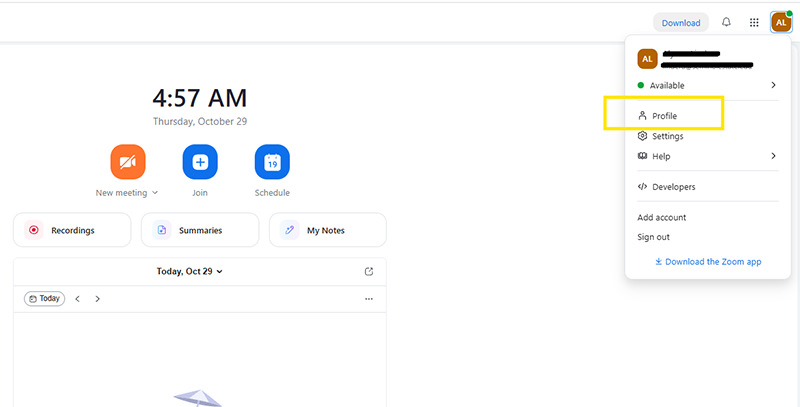
- Once logged in, click on your profile in the top right corner, which opens Zoom My Account.
Step Two - Updating E911
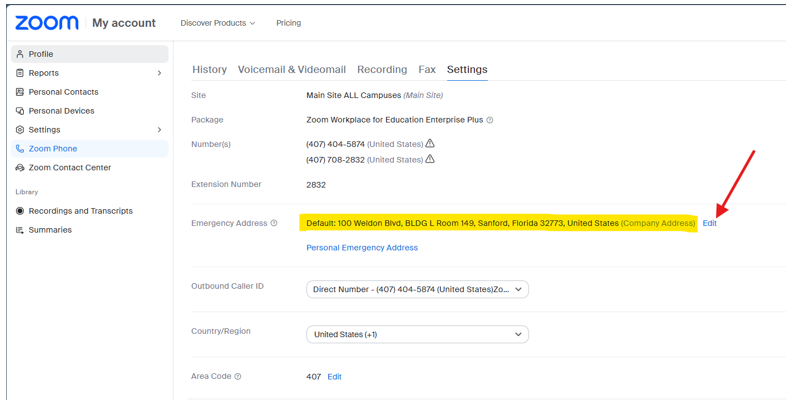
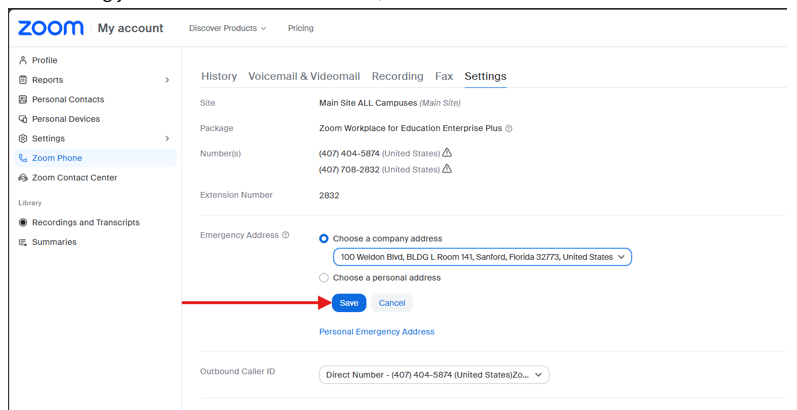
- From the Account page, click the Zoom Phone option on the left-side panel.
- Select the radial button Choose a Company address. In the Emergency Address Line, click on Edit, located to the right (highlighted in blue.)
- You will need to enter your office location in the following format: BLDG (Building Letter) Room (Room#)
(Please note: This search box is not case-sensitive.) - Example: BLDG L Room 141
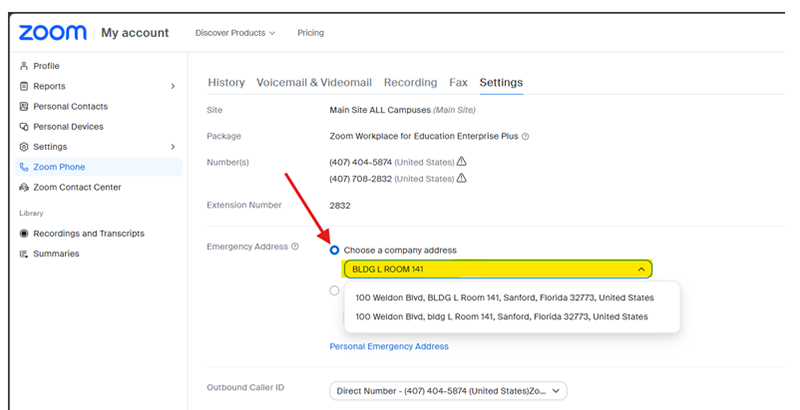
- After finding your location in the search box, select and Save.
Training Links
Zoom Learning Center's training links are great for new users who want to see the amazing Zoom Phone features in action!
Following training links will guide you through using your Zoom Phone account and how to use the Zoom Call Delegation features.

This set of training links takes you through setting up your Zoom Phone account so you can make and receive calls:
Call Delegation
Need an easy way to assign others to handle your calls?
The following article guides you through steps of how to set up Zoom's Call Delegation and explains all the standard Call Delegation settings.
VIP Delegation
After Call Delegation is established, explore the VIP Delegation feature.
VIP Delegation provides the ability to only be accessible to contacts on your VIP list when necessary. Please note: You need to set up delegates first before editing VIP delegations.
Zoom Phone FAQs
Most Asked Zoom Phone Training - General Questions
Most Asked Zoom Phone Training - Existing Phones Questions
End of list

Questions
For any questions, please contact the CTS Network and Telecom team.
Note: Under Florida law, e-mail addresses are public records. If you do not want your e-mail address released in response to a public records request, do not send electronic mail to this entity. Instead, contact this office by phone or in writing.
History.—s. 1, ch. 2006-232.