












Navigate360 Faculty Introduction Guide
Navigate360 links administrators, advisors, deans, faculty, other staff and students in a coordinated care network designed to help proactively manage student success.

The College will collect historical data from across the institution to help inform intervention strategies and to review data. This platform will provide holistic care to all students using cases, alerts, campaigns and care units for coordinated student support. Lastly, the College will empower students to succeed through customized guidance in real-time to help them stay on the right path.
For Students
Students can log in to Navigate360 via the mobile application or the desktop version. Navigate Student helps schools support and retain more students by empowering them to achieve critical academic milestones and alerting them to potential roadblocks sooner.

Key Student Features
- Academic Planner: Plan courses through graduation then schedule and register.
- Appointments: Make appointments with Advising, Academic Support (ASC), Career Center, and more.
- Notifications: Email and/or text message for general communications.
- To-Dos: See important tasks and check them off as they are competed.
- Holds: See a list of current holds in the Hold Center. Get more information about how to resolve them by reviewing the details. Note that it can take up to 24 hours to reflect changes if a hold has been resolved.
- Study Buddies: Identify classmates who are interested in group study and access their contact information directly in the app.
- Hand Raise: Let your campus know that you are looking for more information or need additional assistance by “raising your hand.”
- Resources: See a list of important services and locations on campus.
- Major Explorer: Search for academic programs offered at your school or take the Major Explorer quiz to learn about programs and careers that might be a good fit for you.
- Class Schedule: See your course schedule at a glance or get additional details such as meeting time, location or instructor.
Your Faculty Home Page
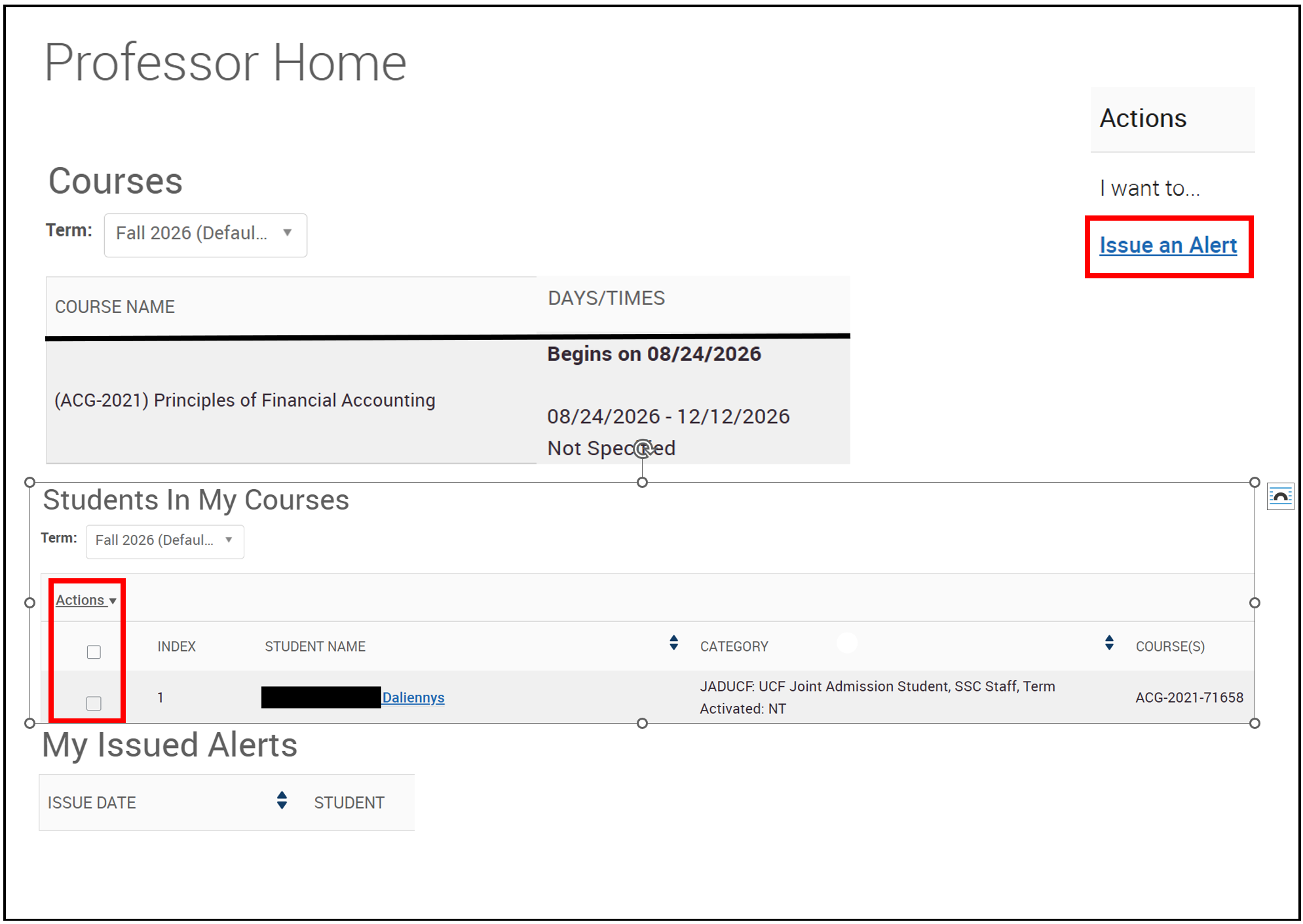
The Professor Home page is where most faculty users arrive when opening Navigate. It allows users to view key tools that enable them to support student success. Faculty will see a list of their courses, with the ability to switch between terms, as well as an alphabetical roster of students enrolled across all courses.
After selecting one or more students, the Actions menu allows faculty to send messages, issue alerts, and add notes. Alerts can also be submitted from this page to highlight students who may require attention or support.
Sending Messages
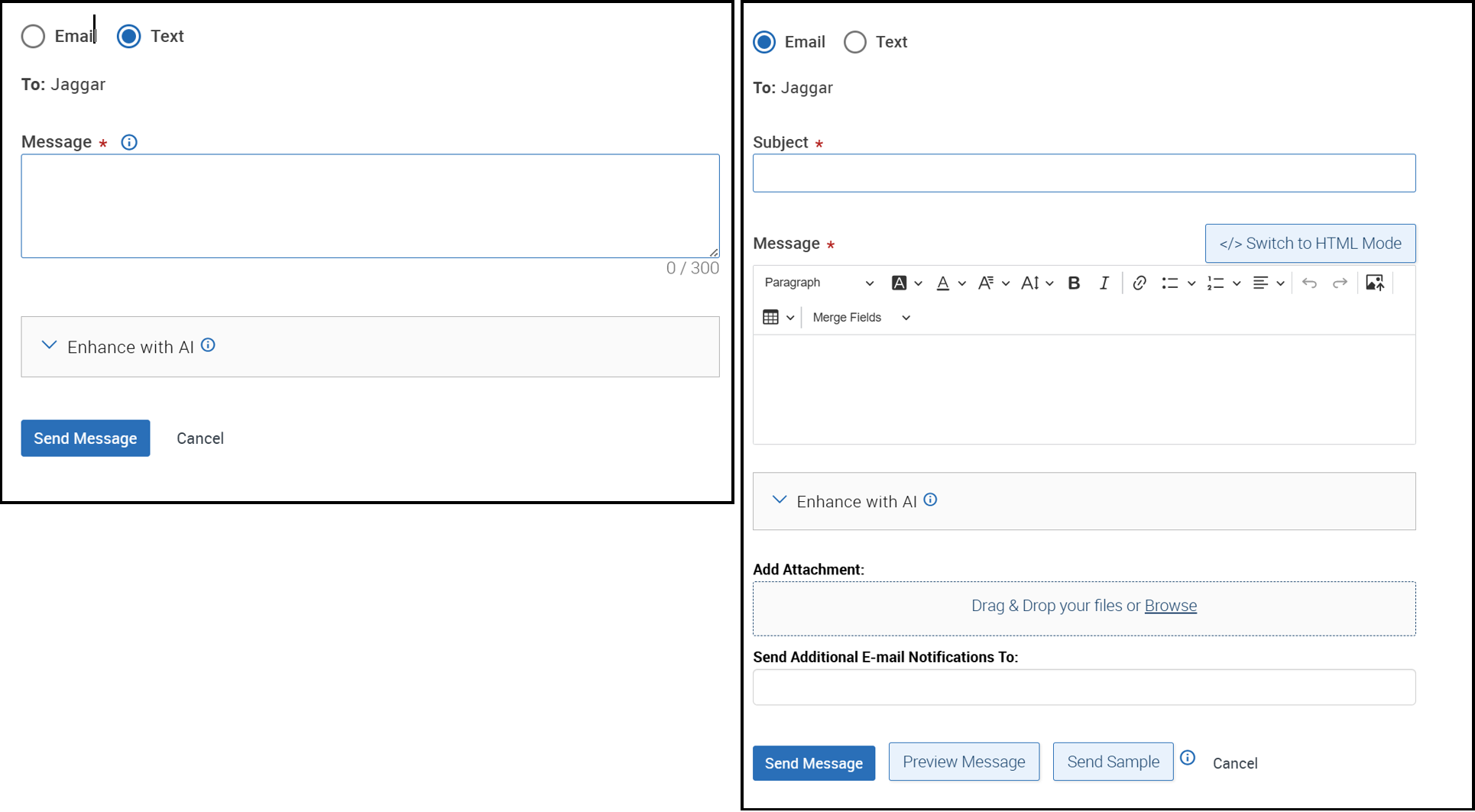
The platform provides both email and text messaging for faculty and staff to communicate with students, either individually or en masse. Communicating with students through the platform creates records of those communications, which can be accessible by other staff or faculty on your campus. In addition, it allows for a quick and easy way to communicate with more than one student at once.
Sending an email or text message to more than one student blind copies all students. In other words, the student does not know that the message was sent to more than one student. For both email and text, it looks like the message was sent to them only.
You can send emails or texts to one or more students from Faculty Home or the student profile. Most Action menus throughout the platform also allow for sending emails or texts. See below for screenshots of each of these locations.
Student Profile: Overview Tab
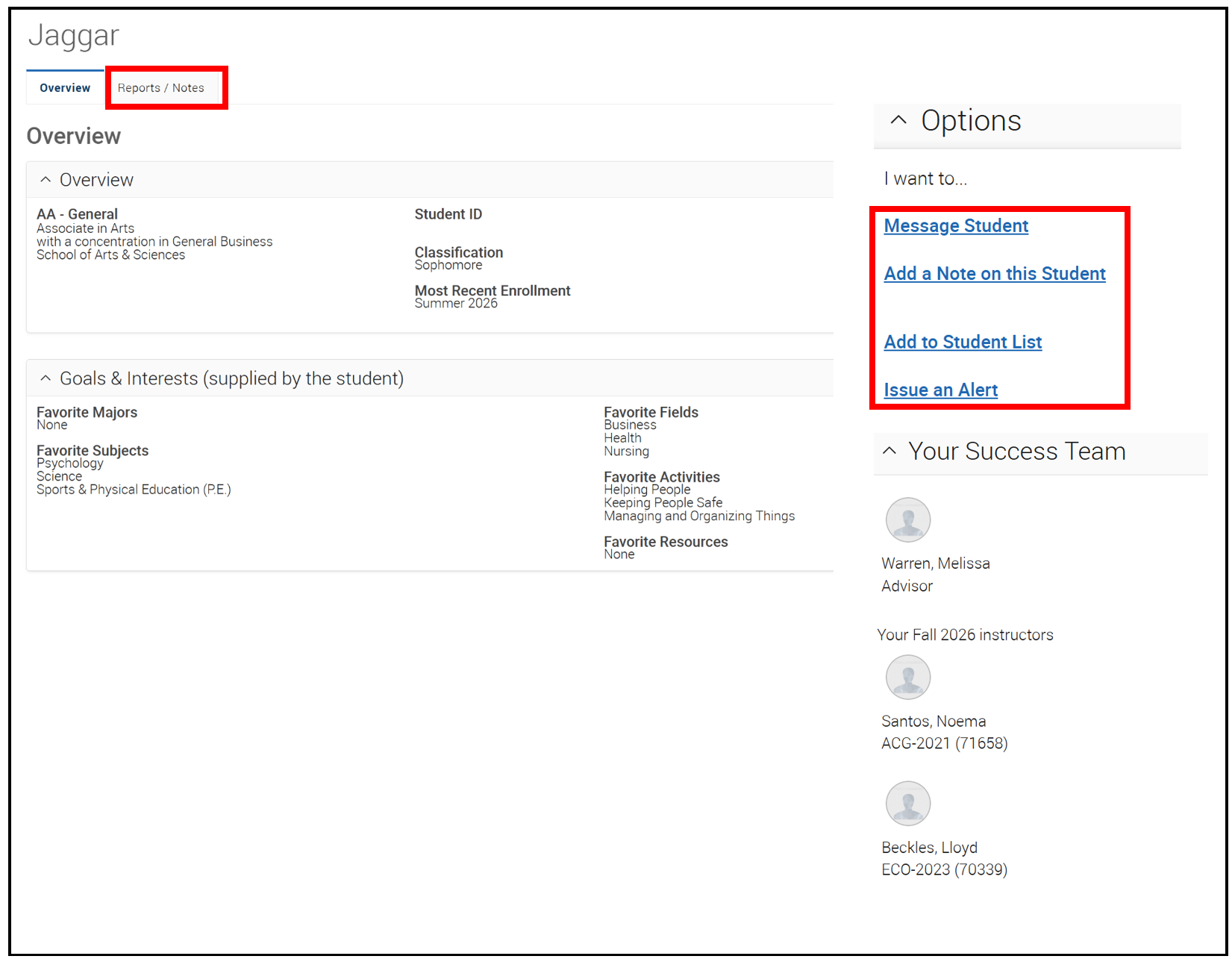
The Student Profile shows key details about a student. The Overview is the main tab of the profile. Student Profiles give faculty quick insight into the student information. The Reports/Notes tab displays the student's engagement history including appointments, Library and ASC check-ins, and issued alerts.
Student Goals and Interests contains information entered by students during their initial app setup. Since this section is optional, some student records may not contain any entries. Responses may include interests in majors, subjects, career fields, activities, and support resources.
On the right side of the Student Profile, faculty can find additional general information about the student. This can include actions such as:
- Adding student to a student list
- Sending a message
- Issuing an alert on the student
- Add note
- Student advisor and instructors